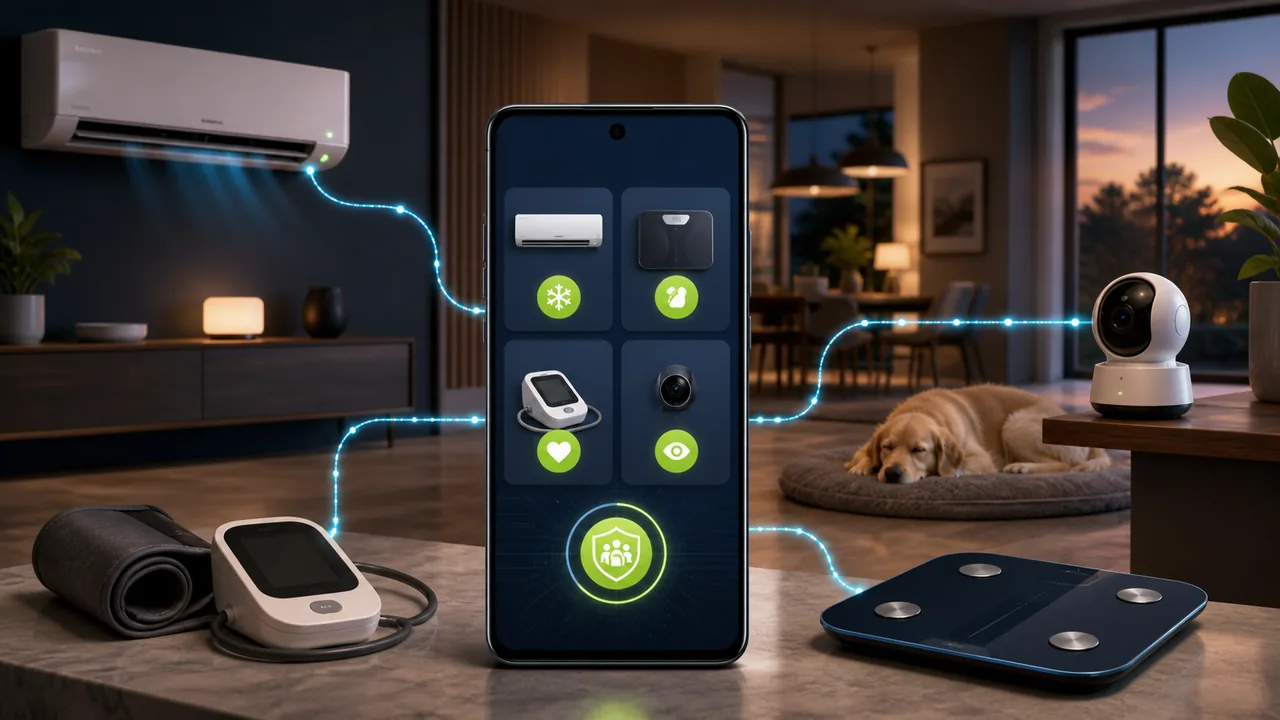
There are more and more smart devices at home, but the control entry points are becoming more fragmented: air conditioners are in one app, lights and outlets are in another, and smart scales and blood pressure monitors each use their own health management apps. When parents are at home, they may not know how to operate these applications, and children away from home cannot handle them directly. When encountering situations like forgetting to turn off the air conditioner, not being able to find blood pressure records, or needing to temporarily check the home situation, phone guidance is often more difficult than actually doing it.
A more direct solution is to use an authorized Android phone as a smart home terminal control center. This phone has the smart device apps installed and logged in beforehand, and then uses Teralivo for unattended remote control of the phone. Users away from home can open a browser to operate this family phone, and indirectly control devices such as air conditioners, lights, robot vacuums, etc., view parents' weight and blood pressure records, or use the phone's camera as a temporary home remote camera.
The key point of this solution is not that Teralivo is directly compatible with all smart home brands, but to leverage the extensive app compatibility that Android phones already have, turning the phone into a unified operation entry point between different home devices.
What is a Smart Home Terminal Control Center?
A smart home terminal control center can be understood as an Android phone that stays at home long-term, has been authorized and configured, and sits in the middle of the entire home control chain:
- Users away from home log in to Teralivo via a browser;
- Teralivo connects to the Android terminal at home;
- Users remotely tap, swipe, and operate apps on the terminal;
- The air conditioner, smart home, or health device apps in the phone communicate with the specific devices;
- The operation results and device data are displayed on the phone's interface, and then presented to the user through the remote screen.
For example, a certain air conditioner brand only supports its own Android app and does not provide a unified web backend. As long as the family terminal has the app installed and logged in, remote users can open the app, select the room, turn on or off the air conditioner, or adjust the temperature, just like standing in front of the phone. Platforms like Google Home also use the phone app to centrally display devices, allowing control of compatible thermostats, lights, outlets, and cameras through device cards.
This solution does not require every home device to be individually connected to Teralivo, nor does it wait for all manufacturers to support the same protocol. As long as the device can be normally operated through an Android app, it is possible to achieve remote access through the family terminal.
Why Is It Recommended to Use a Dedicated Family Phone?
Technically, you can remotely control a family member's daily-use phone, but it is recommended to use an idle phone or a specially purchased Android terminal. A dedicated phone can be fixed at home, connected to stable Wi-Fi, and kept powered, with only home device and health data related apps installed, without mixing in private content like chats, banking, or work files.
This offers three clear advantages:
- Clear boundaries: It is a control terminal jointly confirmed by the family, not a private phone of a family member;
- More stable: It will not lose the home control entry because the user takes the phone out, switches networks, or deletes apps;
- Lower risk: Even if the remote account has issues, what is exposed is the limited home device interface, not the individual's entire digital life.
If you must use the phone that parents are currently using, you should explain the scope of remote control, camera, and health data access in advance and obtain explicit consent. Family relationship does not equal permanent authorization, and care needs cannot be expanded into unlimited access to private communications and daily activities.
Scenario 1: Remotely Turn On/Off Air Conditioners and Other Smart Devices
The most intuitive use of the family terminal is to remotely operate smart home devices that have been bound to the phone. Taking an air conditioner as an example, users can connect to the family phone in the browser and then:
- Open the air conditioner manufacturer's app or Google Home;
- Select the corresponding room and air conditioner;
- View the current on/off status and set temperature;
- Remotely turn on, turn off, or adjust the temperature;
- Return to the device list to confirm the operation result.
The same method can also be used for smart lights, outlets, curtains, air purifiers, humidifiers, robot vacuums, and other devices controlled by Android apps. It is especially suitable for the following situations: parents don't know how to switch between multiple smart home apps; want to confirm if the air conditioner is turned off after going out; need to adjust the temperature before coming home; need to restart devices connected to smart outlets when no one is at home.
Note here that Teralivo controls the phone interface, not sending commands directly to home appliances bypassing the manufacturer's platform. Ultimately, success depends on the phone's network, the manufacturer's cloud service, the app's login status, and whether the smart device itself is online. If the app requires re-login, SMS verification, or re-binding of the device, help from someone at home may still be needed.
Scenario 2: Read Parents' Weight, Blood Pressure, and Other Data
Many smart scales and electronic blood pressure monitors can sync measurement results to Android apps via Bluetooth or manufacturer accounts. After parents complete measurements, data may appear in the device manufacturer's app, health platform, or Health Connect. Android Health Connect can store and organize health and fitness data such as weight and heart rate according to permissions, and allow authorized apps to read and sync records.
Through the family terminal, children can remotely open the corresponding health app, view the latest weight, blood pressure, heart rate, or historical changes, help parents find records, and provide references during medical visits. Compared to having parents read out numbers one by one on the phone, directly viewing the already synced interface is more convenient and reduces errors in dates or units.
However, this use must clarify three boundaries:
- Health data can only be viewed with parents' knowledge and consent;
- The numbers seen remotely depend on the device measurement quality and app sync status;
- It is not equivalent to medical diagnosis, professional remote patient monitoring, or emergency alert systems.
If parents show obvious discomfort, abnormal readings, or require continuous medical observation, follow doctor's advice and do not wait for the family terminal to refresh data. The FTC also reminds that data collected by ordinary health apps may not all be subject to HIPAA. When choosing blood pressure monitors, scales, and companion apps, families should check their privacy policies, data sharing recipients, and account security settings.
Scenario 3: Use the Family Phone as a Remote Camera
A fixed Android phone can also serve as a temporary home remote camera. Users can mount the phone on a stable stand, point it at the living room, entrance, pet activity area, or equipment that needs monitoring, and use Teralivo to view the camera feed when needed.
This method does not require purchasing an additional camera system. It is suitable for temporarily pet-sitting, checking if there is a water leak at home, observing the air conditioner display status, or helping to check the scene when parents actively seek help. The phone has a camera, network, and battery, and can work for a short time on remaining battery after a power outage.
However, a phone is not a professional security camera. Long-term continuous use of the camera may cause issues like overheating, power consumption, network traffic, and device lifespan, and it lacks the night vision, motion detection, local storage redundancy, and offline alarm capabilities of professional cameras. Therefore, it is more suitable as an on-demand home auxiliary terminal, not the sole theft prevention or emergency care system.
The placement and use of the camera must be consented by relevant people in the residence, should not be pointed at highly private spaces such as bedrooms or bathrooms, and cannot be used for secret recording. Different countries and regions have different regulations on home video recording, audio recording, and notification obligations; local rules should be confirmed before use.
Scenario 4: Remotely Help Parents Operate Their Phone
Besides controlling external devices, the same connection can also directly help parents deal with phone issues, such as finding health data, adjusting font size, handling app pop-ups, switching Wi-Fi, modifying smart home scenes, or checking why a device is offline.
Ordinary phone guidance requires parents to accurately describe the screen content, while remote control can directly perform taps and swipes. For elderly people unfamiliar with smartphones, this difference is very significant. Especially when the phone is used as a fixed family terminal, device checks and operations can continue even if no one is at home temporarily.
What Is the Difference from mSpy and Ordinary Remote Control Apps?
mSpy-like products mainly solve the problem of 'viewing phone activity,' ordinary remote assistance apps mainly solve the problem of 'someone is next to the device to receive help,' while the Teralivo family terminal solution emphasizes 'unattended operation of a personal or dedicated Android terminal after completing an authorized binding once.'
| Comparison Item | mSpy-type Monitoring Software | TeamViewer QuickSupport-type Remote Assistance App | Teralivo Family Terminal Control Center |
|---|---|---|---|
| Main goal | Collect location, messages, app activity, screen or environmental information | Temporarily help someone who is using the device | Long-term remote operation of authorized family terminal |
| Whether phone app needs to be installed | Android version usually requires installing monitoring app | Requires installing and opening the remote assistance app | Can be bound via ADB, does not rely on long-term retention of Setup App |
| Full interactive control | Focus is data viewing, not operating any smart home app | Supports remote tapping and operating | Supports remote tapping, swiping, and operating apps in the terminal |
| Whether connection requires on-the-spot confirmation | Monitoring functions usually not full interactive control | Attended mode requires terminal user to accept request | After completing one-time authorized binding, no need to confirm on the terminal side each time |
| Unattended family terminal | Not suitable as a general home device operation entry | May stop at confirmation page when no one is at home | Suitable for fixed, personal or dedicated unattended terminal |
| Main advantage | Many types of monitoring data, mature control panel | Transparent temporary support process, easy for users to understand | One entry to operate multiple manufacturer apps, and can call camera on demand |
| Main limitation | Many sensitive permissions, hidden operation brings trust and compliance risks | Relies on app, confirmation steps, and device compatibility | Initial setup requires physical contact with device, higher account security requirements |
mSpy's officially listed capabilities include GPS, SMS, social media, keylogging, screen capture, remote camera, and environmental audio recording. Its advantage is the variety of monitoring data, but these capabilities are not equivalent to being able to continuously operate the air conditioner app, health app, or any other interface. For a home control center, 'what can be seen' and 'what operations can be performed' are two different issues.
TeamViewer QuickSupport and other regular remote assistance tools can indeed perform interactive control, but the official Android attended access process requires the remote device to display a request and the user to tap allow; some devices also need to confirm starting screen recording. This design is very suitable for temporary technical support, but not for scenarios where no one is at home, parents cannot operate confirmation pop-ups, or the terminal is fixed as a home gateway.
The difference with Teralivo is that after the device completes an authorized binding on-site, subsequent remote control does not require a tap confirmation on the terminal side each time. Users can directly enter the family terminal and operate the already logged-in smart home and health device apps. Therefore, it is more suitable for unattended smart terminals, not just one-time phone remote assistance.
How to Deploy a Family Control Terminal?
For a relatively stable and safe user experience, it is recommended to prepare as follows:
- Choose a supported Android 12–16 phone, preferably an idle but well-maintained device;
- Factory reset or clear personal accounts, keep only necessary home device apps;
- Provide the phone with stable Wi-Fi, a reliable charger, and a well-ventilated fixed location;
- Log in to official apps for air conditioners, smart home, scales, and blood pressure monitors;
- Complete Teralivo authorized binding on-site, and test unattended remote control;
- Test air conditioner operation, health data sync, and camera feed separately;
- Use a separate strong password to protect the management account, and limit who can log in to the control center;
- Record the authorization scope of family members, and periodically clean up data and devices no longer needed.
Do not log in to online banking, work email, or other highly sensitive accounts unrelated to home control on the family terminal. The stronger the remote control permissions, the more you need to reduce the accessible content in the terminal.
What Cannot This Solution Replace?
The family terminal control center provides a general remote operation entry, but it cannot replace all professional systems:
- Cannot replace professional security cameras with sensors, automatic alarms, and backup storage;
- Cannot replace remote patient monitoring and emergency call services provided by medical institutions;
- Cannot guarantee that manufacturer apps, cloud services, or home network are always online;
- Cannot bypass smart device's own account verification, regional restrictions, and security confirmations;
- Cannot be a reason to access family members' phones, cameras, or health data without consent.
The correct positioning is: it gives families an additional unified control entry that can be used from afar, based on existing Android apps and smart devices.
Conclusion
Building a smart home terminal control center with an Android phone has the greatest value in reusing the existing apps in the phone. Regardless of the brand of the air conditioner, lights, scale, or blood pressure monitor, as long as they can be operated normally on this phone, users can remotely access the terminal via Teralivo and complete the corresponding operations.
Compared to mSpy-like software focused on data collection, this solution emphasizes actual operation of any app interface; compared to ordinary remote assistance apps that require users to accept requests on the spot, it can perform unattended remote control after completing an authorized binding. Combined with on-demand camera, the family terminal can become a unified entry connecting smart home, health devices, and remote care.
To make this convenience available in the long term, it is best to choose a dedicated family phone, limit installed content, protect the administrator account, and clarify the authorization scope for camera, health data, and remote control in advance. Technically, no need for confirmation each time does not mean that the first authorization and ongoing family awareness can be omitted.
Trademark notice: mSpy, TeamViewer, Google Home, and other product names belong to their respective owners. This article has no affiliation or partnership with these manufacturers; comparison content is from their public materials.
References
- Android Developers: Android Debug Bridge (ADB)
- Google Home Help: Control Smart Devices with the Google Home App
- Android Developers: Health Connect Health and Fitness Data Platform
- FTC: Health App and Connected Device Health Data Breach Notification Requirements
- FDA: Medical Devices Used at Home
- TeamViewer: Android Attended Remote Control Process
- mSpy: Android Monitoring Features