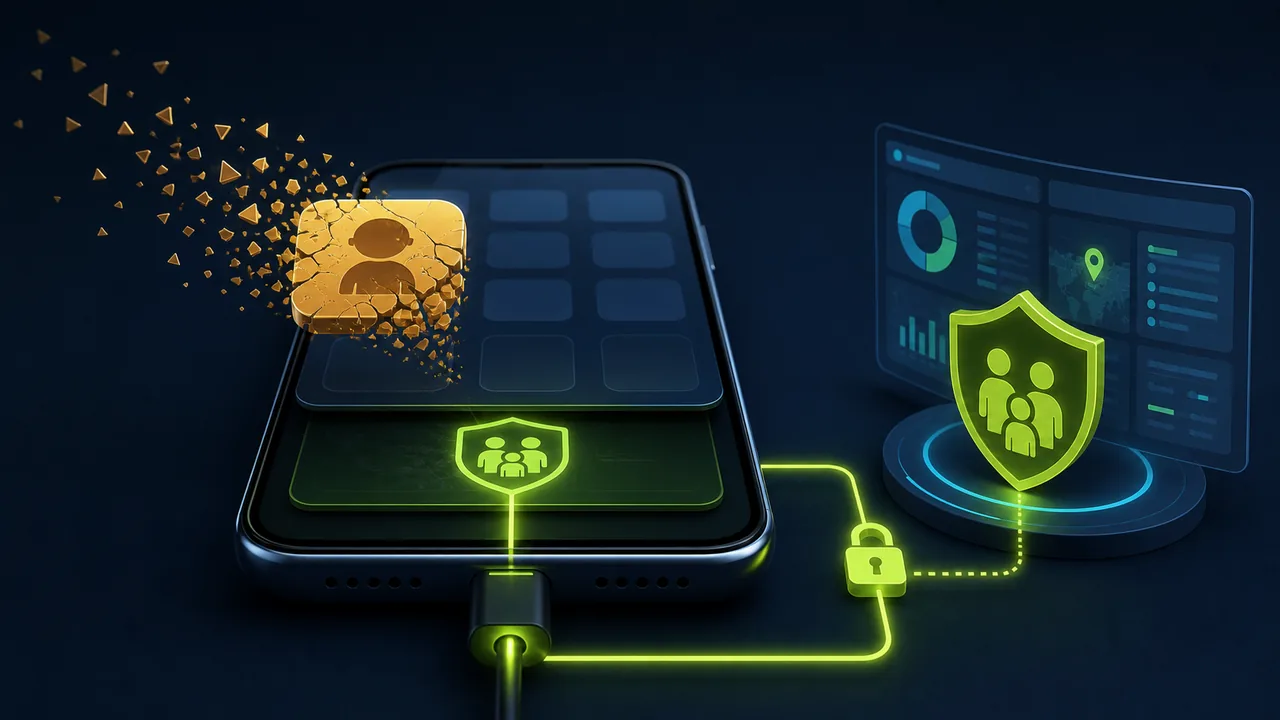
Quick answer: If a conventional parental-control app is removed or force-stopped, the features supplied by that app may stop. Check the device, restore the required permissions, and review why the app was removed. If repeated removal is the main problem, compare an authorized management method that does not depend on a persistent child app.
Parents often compare location, app blocking, and activity reports first. Long-term reliability depends on a more basic question: If the parental-control app on the managed phone is uninstalled, force-stopped, stripped of permissions, or restricted from running in the background, can its rules still be enforced?
This is not a problem unique to any single brand. As long as the solution relies on an ordinary app installed long-term on the managed phone, it must deal with factors such as the app lifecycle, sensitive permissions, battery optimization, and uninstall protection. mSpy, AirDroid Kids, and Qustodio have different functional focuses, but their Android deployment processes all include installing and authorizing the on-device software. Google Family Link is closer to system-level supervised account management, but it still depends on the supervised device, Google account, and related system settings.
Why Does Parental Control Suddenly Stop Working?
“The app is still on the phone” and “the management features are working normally” are not the same thing. Common causes of interruption include:
- The app on the managed device is uninstalled.
- The app is force-stopped, and there is no reliable way to relaunch it.
- Permissions such as Accessibility, Device Administrator, Notification Access, or Location are turned off.
- The device manufacturer's battery-saving policy restricts background activity.
- After a system update, previously granted permissions need to be reconfirmed.
- The device goes offline, the account changes, or the management binding changes.
Some products hide the launcher icon or use Device Administrator to make uninstallation more difficult. These measures can lower the chance of accidental deletion, but they do not change the fact that the solution still depends on the managed-device software, permissions, and Android runtime environment. Hiding the icon does not equal not having an app installed.
mSpy: Hiding the Icon Does Not Equal Not Depending on the App
mSpy's official Android installation documentation requires the installer to have physical access to the phone, download the installer through a browser, and grant permissions such as installing apps from unknown sources and Accessibility. It also provides steps to hide the mSpy icon after installation.
This design helps reduce visible entry points on the home screen, but it creates another problem: if the background software stops working, the device user cannot simply tap the launcher icon to restart it the way they would a normal app. Meanwhile, uninstalling, permission changes, and system background restrictions still need to be addressed.
Therefore, when evaluating mSpy's reliability, you should not only check whether the icon is hidden, but also verify:
- Whether the managed-device software is still running.
- Whether the permissions granted during installation are fully intact.
- Whether the system's power-saving or security policies have changed.
- Whether the last data update time continues to refresh.
AirDroid Kids: Uninstall Protection, but the Managed Device Still Has the Kids App
AirDroid Parental Control's official guide requires downloading and binding AirDroid Kids on the child's Android phone. It supports features such as app limits, downtime periods, location, activity reports, and remote viewing.
AirDroid protects sensitive operations with an administrator code. The official guide states that uninstalling AirDroid Kids requires entering a four-digit administrator code or password. This makes it harder to delete by accident than an ordinary unprotected app, but its management capabilities still depend on AirDroid Kids being properly installed, granted permissions, and running continuously.
For parents, the administrator code is very important: do not share it with the child, and do not use easy-to-guess combinations such as birthdays or sequential digits. Also, regularly confirm AirDroid Kids' permissions and online status.
Qustodio: More Complete Installation Protection, but More Configuration Steps
Qustodio's official Android installation process requires installing the Kids App and configuring Device Administrator, VPN, certificates, and several permissions. The official documentation also specifically cautions against battery-saving options that could affect Qustodio.
These steps can strengthen web filtering and uninstall protection, but they also mean reliability depends on multiple configuration items. After changing phones, upgrading the system, or resetting network settings, if any one of these pieces fails, some features may stop working properly. Parents need to record the installation steps and check each item when data stops updating, rather than just looking at whether the dashboard can still be logged into.
Google Family Link: A Supervised Account Approach Does Not Equal Full Remote Control
Google Family Link can manage apps, screen time, content restrictions, and location on supervised devices. Its advantage is that it is tightly integrated with Google accounts and the Android system, so it does not rely entirely on a hidden third-party monitoring app.
However, Family Link mainly covers Google account and device supervision. It is not a general-purpose Android remote operation tool, and it cannot replace the management capabilities of every vendor app. If a family also needs custom location polling intervals, rules applied across multiple time periods, automatic removal of specific apps, or remote assistance on the phone, they need to compare more specific feature sets.
mSpy, AirDroid, Qustodio, Family Link, and Teralivo Comparison
| Aspect | mSpy | AirDroid Kids | Qustodio | Google Family Link | Teralivo |
|---|---|---|---|---|---|
| Primary Android deployment method | Install software on the managed device and grant permissions | Install and bind AirDroid Kids | Install the Kids App and configure multiple permissions | Set up a supervised Google account and device | One-time binding via USB after authorization |
| Relies on a long-term installed ordinary control app | Yes | Yes | Yes | Mainly relies on the supervised account and system services | No |
| Accidental uninstall prevention | Hides the icon and related protections | Administrator code or password | Device Administrator and other protections | Parent verification and account supervision | No ordinary control app on the managed device that can be accidentally deleted |
| App restrictions | Depends on version and plan | Supports app limits and downtime periods | Supports app and time limits | Supports allow, block, and time limits | Supports disabling specific apps by time period |
| App usage duration | Depends on version and features | Supports activity reports | Supports activity reports | Supports viewing usage time for some apps | Supports app usage duration reports |
| Remote interactive operations | Focus is on information viewing | Supports some remote viewing capabilities | Focus is on parental controls and reports | Does not aim at full remote operations | Supports remote assistance for authorized devices |
| Main operational risks | Permissions, background execution, and managed-device software state | Kids App, permissions, and background state | Kids App, VPN, certificates, and battery settings | Account, connectivity, and supervision state | Network connection, system compatibility, or binding state changes |
The table compares publicly documented deployment methods and functional focuses; it does not mean that all versions, plans, and phone models perform exactly the same. Before choosing a product, rely on the vendor's current documentation and the Android versions actually supported.
How Does Teralivo Reduce the Risk of Failure Caused by Accidental Uninstallation?
The difference with Teralivo is that the parent or device owner needs to unlock the phone on-site, enable the necessary Developer options, and complete a one-time authorization and binding via USB. After that, the managed phone does not need to have an ordinary parental control app installed long-term that could be accidentally deleted from the app list.
This approach does not focus on “hiding the icon even deeper”; instead, it reduces dependence on the ordinary app lifecycle. Managers can configure the following based on family rules:
- Location polling intervals and daily active time windows.
- Disable specific apps during study, sleep, and other time periods.
- Automatically remove apps explicitly included in the rules.
- View the usage duration of each app.
- Provide remote assistance for authorized phones when needed.
Location and usage reports still need a network connection to upload in a timely manner; after binding status or system compatibility changes, configuration may also need to be checked. A reliable parental control solution should provide device online status, last report time, and anomaly alerts, rather than just promising “cannot be uninstalled.”
What Should You Check After an App Is Uninstalled or Stopped?
If your existing parental control tool suddenly stops updating, troubleshoot in the following order:
- Check the device's last online time to confirm whether the phone is connected to the network.
- Check whether the managed-device software still exists.
- Check permissions such as Location, Accessibility, Device Administrator, VPN, and Notification Access.
- Check battery optimization, background restrictions, and vendor autostart settings.
- See whether the product dashboard reports unbinding, lost permissions, or an outdated version.
- Rebind only with the device user's knowledge and authorization.
If you frequently need to reinstall and restore permissions, the deployment architecture is worth fixing rather than continuing to add hidden icons or disguised names.
Parental Control Does Not Equal Secret Monitoring
Whatever technology is used, parental control should serve the safety, schedules, and digital habits of minors, not the unrestricted reading of private communications. Families are advised to state in advance: what data is collected, how often it is collected, how long it is retained, who can view it, and at what age or under what conditions the child can have the rules adjusted.
Teralivo is intended only for devices of minor children legally managed by a guardian, for your own devices, or for devices where the owner has given explicit authorization. It must not be used to secretly track a partner, employees, or other adults. Different countries and regions have different requirements for children's privacy, location data, and surveillance disclosure; confirm local rules before official use.
Conclusion
Long-term failure of Android parental control is often not caused by the dashboard, but by the managed-device app being uninstalled, stopped, restricted in the background, or losing critical permissions. mSpy reduces visibility by hiding the icon, AirDroid Kids and Qustodio add protection through administrator permissions, and Family Link relies on a supervised Google account and system services; each approach has its own applicability.
If what the family worries about most is the managed-device app being accidentally uninstalled, Teralivo's value lies in completing binding through a one-time USB authorization and avoiding long-term reliance on an ordinary control app that can be deleted by mistake. Combined with scheduled disabling, automatic removal of specific apps, usage duration reports, and remote assistance, parental control can move from “installing a monitoring app” to a continuously verifiable device management strategy.
Trademark notice: mSpy, AirDroid, Qustodio, Google Family Link, and other product names belong to their respective owners. Teralivo has no affiliation or partnership with these vendors. This comparison is based on public documentation and does not constitute a guarantee of all versions and device performance.