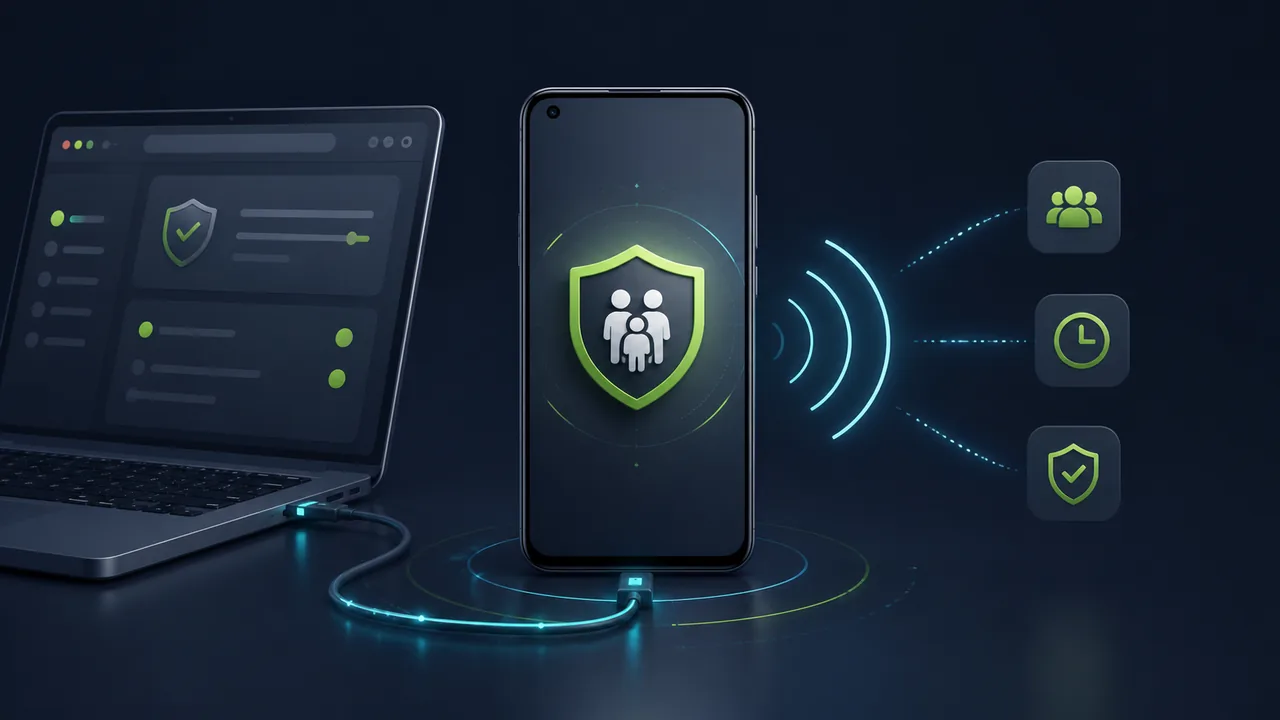
People searching for “how to monitor Android phone from PC without installing app” or “control kids Android phone from browser” often expect to open a website and connect to another phone immediately. Under Android's normal security model, however, a trustworthy solution should never bypass the device owner's initial authorization.
A more accurate goal is: do not keep a conventional control app installed on the managed phone; after a parent or administrator who has the right to manage the device completes the initial binding, use a browser as a low-visibility management entry point.
Teralivo binds a device through USB debugging or a supported wireless-debugging flow. Once bound, a family administrator can view device status, configure family rules, or start remote assistance from the web. This differs from solutions such as mSpy, which require software to be installed directly on the Android phone, but it is not a tool that can connect to any phone simply by knowing its number.
What does “no app installation” actually mean?
“No installation” can be misunderstood, so three concepts must be separated:
- No conventional control APK remains installed long term: the managed phone does not need to retain an ordinary Android parental-control App;
- Initial authorization is still required: Developer options and debugging must be enabled on the device, and a trusted connection must be confirmed;
- A device-side management process still exists: browser management requires cooperation between the device and the service; it does not mean that absolutely no program runs on the device.
This distinction matters. It describes the technical advantage accurately without creating the false expectation that any Android phone can be connected without physical access or authorization.
Why is low visibility important for parental supervision?
Even if a conventional parental-control App hides its home-screen icon, its APK still appears in application and permission settings. A child may find it while cleaning storage, checking battery use, or organizing apps, and may stop or uninstall it. Once that ordinary monitoring App stops, location updates, application rules, and remote assistance may also stop.
Teralivo does not require a conventional control APK to remain on the managed phone. There is therefore no ordinary parental-control App icon continually reminding or distracting the child, and the control side is less likely to be accidentally removed from the application list. Parents can still use a browser to view location, schedule application access, understand app usage time, and start remote operations when necessary.
Here, “discreet” means low visibility in the product design; it does not encourage monitoring adults without their consent. The approach is intended for parents lawfully managing a minor's device, personally owned family terminals, and explicitly authorized devices.
How Android wireless debugging officially works
Android documentation states that Android 11 and later support ADB over Wi-Fi. Initial pairing normally requires:
- The phone and the pairing device to be on a compatible network;
- Developer options enabled on the phone;
- Wireless debugging turned on;
- A pairing code or QR code generated on the phone;
- The device owner to confirm pairing;
- When access is no longer required, forgetting the workstation under paired devices or revoking debugging authorizations.
Menu names vary between brands and Android versions. Some Xiaomi devices also require “USB debugging (Security settings).” Always follow the interface shown by the current device and its manufacturer's documentation.
What you need before managing a family Android phone from a browser
Confirm the following before starting:
| Item | Requirement |
|---|---|
| Device ownership | You own the phone, or have the device owner's authorization and any consent required by applicable rules |
| Android version | Wireless debugging generally requires Android 11 or later |
| Initial access | You can unlock the phone and confirm Developer options and debugging authorization on it |
| Browser | A desktop or mobile browser supported by the product |
| Connection | A reliable USB data cable, or a network environment that meets wireless-debugging requirements |
| Family rules | Define in advance the location, apps, time periods, and remote-assistance scope to be managed |
If you cannot complete these authorizations on the phone, do not try to bypass them by other means. For a child's device, explain the management scope in a way appropriate to the child's age, family arrangements, and local rules.
Step one: enable Developer options on the Android phone
Developer options are hidden by default. A common method is to open “About phone” in Settings and tap the build number or system version repeatedly until Android confirms that developer mode is enabled.
Return to Settings and open Developer options under “System” or “Additional settings.” The exact path varies across Google Pixel, Samsung, Xiaomi, OPPO, vivo, and other brands.
Enabling Developer options alone does not authorize remote management. Before a connection can be established, USB debugging or wireless debugging must also be enabled and the authorization request confirmed on the phone.
Step two: use USB debugging or wireless debugging for initial binding
Using USB debugging
USB debugging is suitable for initial deployment and makes connection problems easier to diagnose:
- Enable USB debugging in Developer options;
- Connect the phone to the browser computer with a data cable;
- Confirm the trusted computer in the RSA authorization prompt on the phone;
- Select and bind the phone on the Teralivo website;
- Verify that the device appears online.
Do not grant long-term trust on a public computer or approve a debugging request from an unknown source.
Using wireless debugging
Wireless debugging is suitable for devices running Android 11 or later that support it:
- Turn on wireless debugging in Developer options;
- Choose a pairing code or the pairing flow supported by the product;
- Complete pairing within the allowed time;
- Confirm that the displayed device is the current phone;
- Verify device status after pairing.
Android documentation explains that the phone remembers paired workstations until the user forgets them or revokes ADB debugging authorization. Network changes, manufacturer implementations, and system versions can affect automatic reconnection, so wireless debugging should not be understood as guaranteeing permanent availability in every environment.
Step three: enable only the functions your family actually needs
After binding, do not enable every function at once. Configure features according to the family's actual requirements:
- Set appropriate location collection periods and intervals;
- Restrict selected apps during study or rest hours;
- Review app usage duration instead of reading unrelated private content;
- Start remote assistance when parents need help;
- Manage smart-home apps used by the family;
- Periodically check whether the device is online and its rules remain appropriate.
For example, parents may only need a child's location after school and limits on games at night. In that case, high-frequency all-day location collection and access to unrelated communications are unnecessary. Collecting less data usually reduces explanation effort, privacy risk, and storage burden.
Step four: verify remote control, not merely an “online” indicator
An online status only shows that a connection exists; it does not prove that every management function works as expected. Test the following on a phone you own:
- Leave it locked for a while, then check its status again;
- Verify location intervals and scheduled periods;
- Confirm that app restrictions apply only during the specified periods;
- Start remote assistance and check video and control latency;
- Confirm that the session stops immediately after assistance ends;
- Verify how to revoke authorization and unbind the device.
These tests reveal more about long-term suitability than a simple comparison of feature lists.
How does this differ from an mSpy-style managed app?
mSpy's official FAQ says that using mSpy on Android requires installing its software directly on the target phone, after which its icon can be hidden. Its strength is a broad set of parental-monitoring data, but installation and continued operation depend on managed-device software and its permissions.
Browser management with debugging authorization addresses a different need: it creates an operation and management entry point on an authorized device while reducing dependence on a conventional persistent control App.
| Need | mSpy-style solution | Browser and debugging-authorization solution |
|---|---|---|
| Initial setup | Install a managed-device App and grant permissions | Enable debugging on the device and confirm a trusted connection |
| Long-term conventional APK | Usually required | No conventional control APK needs to remain installed |
| Low visibility | The icon can be hidden, but the ordinary App and permission records remain | No ordinary control App icon, less day-to-day interference, and lower accidental-uninstallation risk |
| Core capability | Parental monitoring and activity data | Device rules, browser management, and remote operation |
| Background dependencies | Affected by the App lifecycle and permission state | Does not depend on an ordinary control App lifecycle, but still depends on network and device state |
| Removal | Uninstall or unbind through the product flow | Unbind the product and revoke debugging authorization in Android settings |
If your goal is to read extensive social-app activity, conventional monitoring software may be closer to your needs. If the goal is to manage family devices, restrict selected apps, view location, and provide remote assistance, browser management is usually more direct.
Security settings: which authorizations should be checked regularly?
Developer options and ADB are powerful device-management interfaces. Family use should follow at least these principles:
- Enable them only on devices you own or are explicitly authorized to manage;
- Never give a wireless-debugging pairing code to strangers;
- Do not pair on public Wi-Fi or an untrusted computer;
- Protect the Teralivo account with a strong password and available security verification;
- Review paired debugging devices in Android regularly;
- Unbind and revoke debugging authorization immediately when the device is no longer managed;
- Retain only the data and functions required for the family's goals.
Google Play's monitoring-app policy also emphasizes prominent disclosure, user consent, and data minimization. Technical capability alone does not make every use appropriate; first verify that an action complies with family arrangements, product rules, and local law.
Frequently asked questions
Can management begin without touching the phone at all?
No. Secure initial binding requires unlocking the device and completing debugging authorization in Android settings. Treat any service claiming it can connect to an arbitrary Android phone using only a phone number with caution.
Does wireless debugging mean the phone and computer must always remain on the same Wi-Fi?
Initial wireless pairing normally has to meet Android's official network requirements. After Teralivo device binding, the product service provides the remote-management link, but actual availability still depends on the phone's network, device state, and the product's supported scope.
Does using no conventional App mean zero battery use?
No. Location collection, network communication, remote video, and device management all consume some resources. The precise advantage is that an ordinary Android control App does not need to perform every background task indefinitely. More frequent location collection and longer remote sessions generally use more resources.
How do I stop management?
End the remote session and unbind the device in Teralivo. Then review authorized or paired debugging devices under Android Developer options and, when required, choose “Forget” or revoke USB debugging authorizations.
To use a family phone for location management, app rules, or remote assistance, follow the related product links below to learn more about family Android device management and Android remote assistance.
References
- Android Developers: Run apps on a hardware device through USB or Wi-Fi debugging
- Android Developers: Configure on-device Developer options
- Android Developers: Background-task restrictions
- mSpy: Official FAQ and Android installation information
- Google Play: Monitoring-app and malware policy
- Google Play: Spyware policy