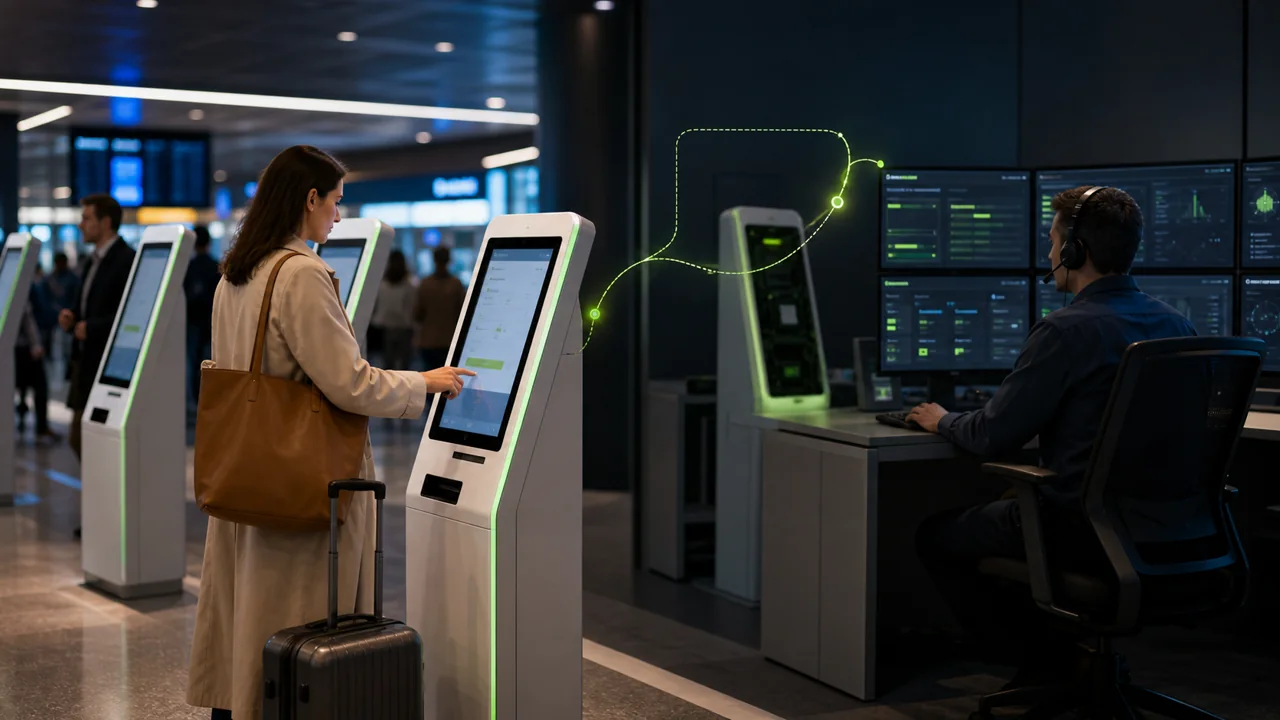
The most frustrating scenario for operations teams managing Android Kiosk devices is often not a device that is completely offline, but one that “looks online” while users cannot complete their business tasks. A smart parcel locker may be stuck on the pickup page without syncing orders, a self-service vending machine may accept taps but fail to process payment, and a hotel check-in terminal may keep spinning because the account has expired. If engineers respond by remotely taking over the foreground screen, it saves a trip to the site but may prevent on-site users from continuing to operate the terminal for the entire troubleshooting session.
A reusable maintenance checklist should first determine whether the failure is in the network, business app, account, peripheral, or hardware, and then choose an approach that does not widen the impact. Teralivo's value is not to replace all MDM solutions, but to provide an unattended background operation entry point for compatible apps on devices that have already been authorized and bound, keeping the foreground Kiosk workflow as available as possible.
Step 1: Confirm the Scope of Impact First — Do Not Take Over the Screen Immediately
After receiving an alert, answer three questions first: Is only one device affected, or is there a batch failure across the same store, the same carrier, or the same version? Is the device truly offline, or is only the business API timing out? Can users still complete the core flow on the foreground?
If multiple devices in the same batch fail simultaneously, first check the server side, DNS, certificates, account policies, and recent release records. If only a single device is affected, check network status, storage, business app status, and peripheral connectivity. This prevents engineers from restarting devices one by one during a platform outage and from pushing global configurations by mistake during a single-device failure.
It is recommended to record the device ID, terminal model, Android version, business app version, first anomaly time, and the most recent successful transaction time for each alert. Do not record customer accounts, pickup codes, or other unnecessary personal information in the ticket.
Step 2: Layer Troubleshooting Actions by Risk
Low-risk actions include checking device online status, confirming whether the maintenance app can start, refreshing the business account status, checking the sync queue, and re-requesting a connection. Medium-risk actions include clearing rebuildable caches, changing the connection address, re-logging in to the enterprise account, or restarting the specified app. High-risk actions include restarting the entire device, upgrading versions, clearing business data, exiting Kiosk mode, or modifying system-level policies.
Remote maintenance should start with low-risk actions. Record the result of each step and define stop conditions. If the issue has been resolved, do not continue with more aggressive actions. For actions that require clearing data or upgrading versions, first confirm whether the account, configuration, and offline queue can be restored, and verify on a test device.
Step 3: Handle Compatible Apps in the Background While Preserving the Foreground Business
Traditional unattended remote control usually operates the device's physical screen. When an engineer opens settings, management tools, or a login page, on-site users see the same navigation; some products can turn the screen black, but users still cannot continue completing transactions.
For apps that support independent virtual display, Teralivo can launch the maintenance app in a background display and send clicks, swipes, and text input to that display. The physical screen remains on the Kiosk business interface while the engineer addresses account, connection, or configuration issues. This capability must be validated on a real device because not all apps support independent display; apps that depend on a physical camera, secure keyboard, hardware acceleration, or a designated screen may still require foreground operation.
| Troubleshooting action | Recommended execution location | May affect the foreground? |
|---|---|---|
| Check account and sync status | Independent background display | Usually does not affect |
| Modify connection configuration of a compatible app | Independent background display | Usually does not affect |
| Restart the business app | Physical screen | Short-term impact |
| Restart the Android device | System-level operation | Interrupts business |
| Check printer, scanner, or locker door | On-site combined with background | Depends on hardware |
Step 4: Validate the Full Business Flow After Recovery
“The app can open” does not mean the fault is resolved. For a parcel locker, you need to verify query, door opening, result reporting, and door closing; for a vending machine, you need to verify product selection, payment, dispensing, and inventory sync; for a check-in terminal, you need to verify ID document reading, order matching, and room card writing.
Prepare a test order or test account that does not contain real user information. After recovery, complete an end-to-end operation and observe whether there are still backlogs, error retries, or duplicate submissions in the backend. Only when the foreground process, server-side records, and peripheral results are consistent can the ticket be closed.
Step 5: Be Clear About What Remote Maintenance Cannot Solve
Complete network loss, power failure, screen damage, loose cables, printer paper-out, mechanical failure of locker doors, and storage chip damage cannot be resolved by remote operation alone. If the target app does not support virtual display, you may need to schedule a maintenance window to take over the physical screen. Enterprises should still maintain on-site recovery staff, spare parts, offline business plans, and a clear escalation path.
In addition, unattended does not mean unauthorized. Terminals should belong to the enterprise or have explicit authorization from the device owner. Management accounts should use strong authentication and role-based permissions, and audit logs should be retained for critical operations.
Turn One Troubleshooting Session into a Repeatable Runbook
Effective Kiosk operations do not rely on one engineer's experience; they follow a consistent sequence: confirm the scope of impact, choose low-risk actions, prioritize background handling, validate the full business flow, record the cause, and add preventive rules. Repeated account expiration, cache backlog, or connection failures should become monitoring metrics and automated alerts rather than waiting for user complaints.
Before bulk deployment, run a pilot with a small number of real devices and record which maintenance apps support background display, which actions affect the foreground, average recovery time, and the proportion of cases requiring on-site handling. With this data, enterprises can accurately determine the respective roles of Teralivo, traditional MDM, and on-site support.