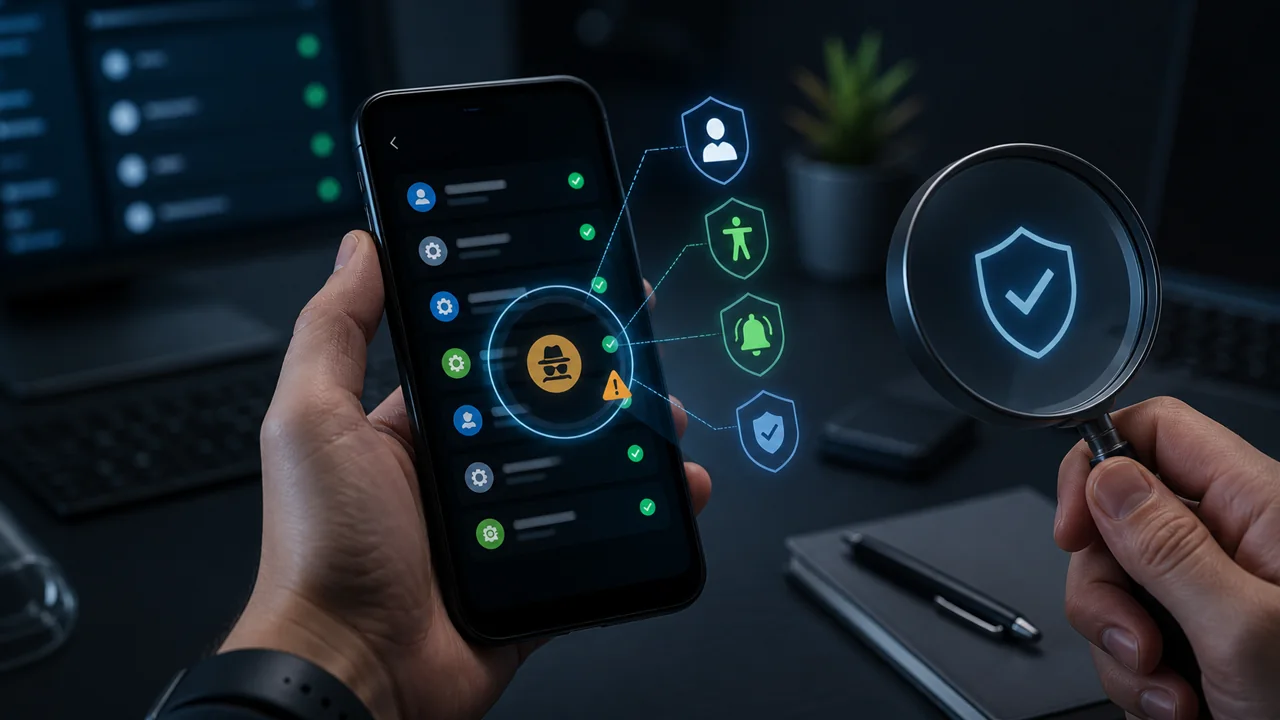
Products like mSpy, Eyezy, and KidsGuard Pro often emphasize hidden icons or background operation, but hiding the home screen entry does not mean disappearing from the Android system. As long as the monitoring capability is provided by a regular app installed on the phone, it typically needs a package name, permissions, background activity, and some method of data upload. Users may not see the icon, yet they can still spot anomalies in system settings and security records.
The following checks should only be performed on a device that you personally own or have been explicitly authorized to inspect. If you suspect monitoring without consent, prioritize personal safety. Do not develop your entire response plan on a phone that may be monitored. If necessary, use another trusted device to seek professional help.
Check 1: Don't Only Look at the Home Screen Icon
Open the app list in system settings, choose Show all apps, and look for unfamiliar names. Monitoring apps may use common names such as "System Update" or "Device Health", and the home screen icon may also be hidden. The key is not whether the name looks suspicious, but whether the installation time, source, data usage, battery consumption, storage size, and permission combination are consistent with the app's purpose.
If an unfamiliar app simultaneously uses location, microphone, notification access, SMS, or contacts, it is riskier than a normal tool that only requests a single permission. Do not delete an app just because its package name resembles a system component. First, record its name, package name, and permissions, and confirm whether it belongs to the device manufacturer or a work management system.
Check 2: Review the Permission Manager and Special Access
Android allows you to view which apps can access location, camera, microphone, SMS, call logs, and contacts by permission type. You should also check special permissions such as notification access, device management apps, display over other apps, usage access, and install unknown apps.
The more monitoring features an app has, the more access it usually needs. Permissions alone do not prove malicious intent, because parental controls, accessibility assistance, and enterprise management tools may also legitimately use sensitive capabilities. What really matters is whether the device owner is aware, whether the authorization is explicit, and whether the app's behavior matches its description.
Check 3: Focus on Accessibility Services
Some monitoring or remote control apps use accessibility services to read on-screen content, observe actions, or perform taps. Go to Accessibility settings and review the installed services and their current status. Unknown services, services that do not match an app name, or high-privilege services whose purpose cannot be explained deserve further investigation.
Disabling an accessibility permission may stop legitimate tools or alert the monitoring party. If domestic violence, stalking, or real-world safety risks are involved, do not rush to change the device state. Consult a trusted organization or security professional first.
Check 4: Review Notifications, Battery Usage, and Network Traces
A regular Android app that needs to run continuously may use a foreground service to improve its survival chances, and foreground services typically show an ongoing notification. Notifications disguised as system updates can still be long-pressed to reveal the real source. Battery usage and mobile data statistics may also show an apparently unrelated app running in the background for a long time.
These records are not absolute proof. Manufacturer UI, statistics windows, and battery-saving policies vary, and apps may upload data intermittently. But when several signs appear together, such as an unfamiliar app, broad permissions, accessibility services, and ongoing network activity, you should investigate further.
Check 5: Keep Google Play Protect Enabled
Google Play Protect checks apps from Google Play and other sources, and scans the device periodically. When it finds potentially harmful behavior, it may warn, disable, or remove the app. It may also flag software that hides or misrepresents important information. Turning off Play Protect removes a layer of protection and should not be a standard installation step for any monitoring product.
Play Protect not raising an alert does not prove that the device is completely safe. New samples, preinstalled vendor software, legitimately signed but abused tools, and management methods that do not exist as ordinary APKs may not be detected in the same way.
Hidden Apps vs. No Persistent App: Not the Same
| Check item | Hidden regular monitoring app | Management without a regular persistent app |
|---|---|---|
| Is an APK installed | Yes | Does not rely on a regular control APK remaining resident |
| Is it listed in the app list | Usually yes | Does not appear as a regular managed app |
| Does it request regular app permissions | Usually needed | Uses a pre-authorized device management channel |
| Can it be uninstalled | Possible | No ordinary app uninstall entry exists |
| Does it require initial authorization | Yes | Requires device owner or admin authorization as well |
Teralivo should not be described as "connecting to a phone without any software or authorization". The accurate statement is: the device owner or authorized administrator first completes binding via USB, wireless debugging, or a supported setup method, and subsequent management does not depend on a regular control app with a home screen icon being installed long-term. The device still needs to be powered on, connected to the network, and maintain a valid binding.
What to Do If You Find Something Suspicious
First, record the app name, package name, permissions, and installation source. Then, from a trusted device, change important account passwords and check login sessions. Once you confirm the software is unauthorized, you can revoke its permissions, remove its device management role, and uninstall it. If you are unsure, contact the device manufacturer, a security expert, or a local support organization.
Do not just delete the home screen shortcut, and do not download so-called "one-click anti-monitoring" tools from unknown sources. After handling it, re-check Play Protect, system updates, account recovery methods, and family sharing settings.